Have you ever found the perfect image for a project, only to realize it has a clunky, solid white background? We’ve all been there! Trying to layer an image with a solid background over other graphics can be incredibly frustrating.
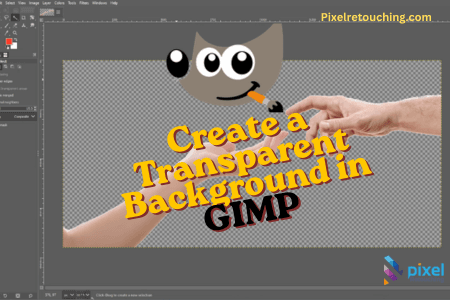
Thankfully, removing that background is much easier than you might think. Welcome to another short and easy tutorial. Today, we are going to walk you through the exact steps to take any image and give it a clean, transparent background using GIMP.
Let’s dive right in!
Step 1: Add an Alpha Channel
First things first, open up your image in GIMP.
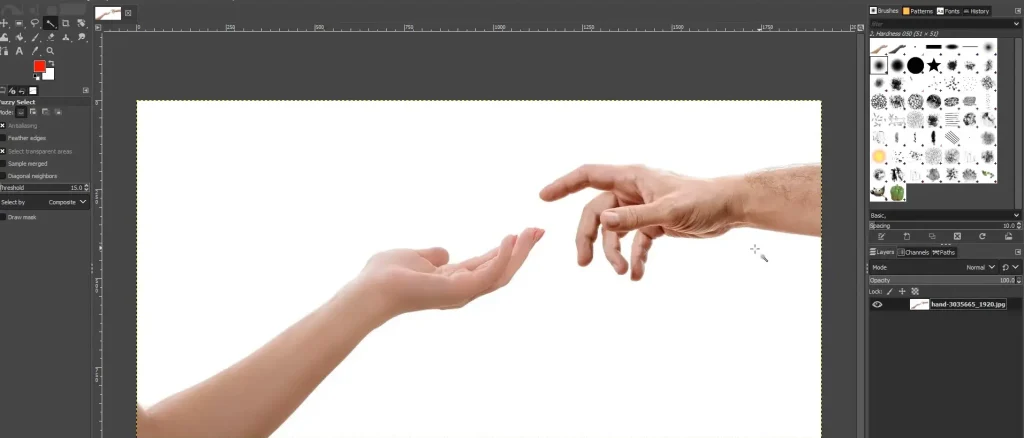
Take a look at the Layer section on your screen. You need to tell GIMP that this image is allowed to be transparent. To do this, simply right-click on your image layer and select “Add Alpha Channel”.
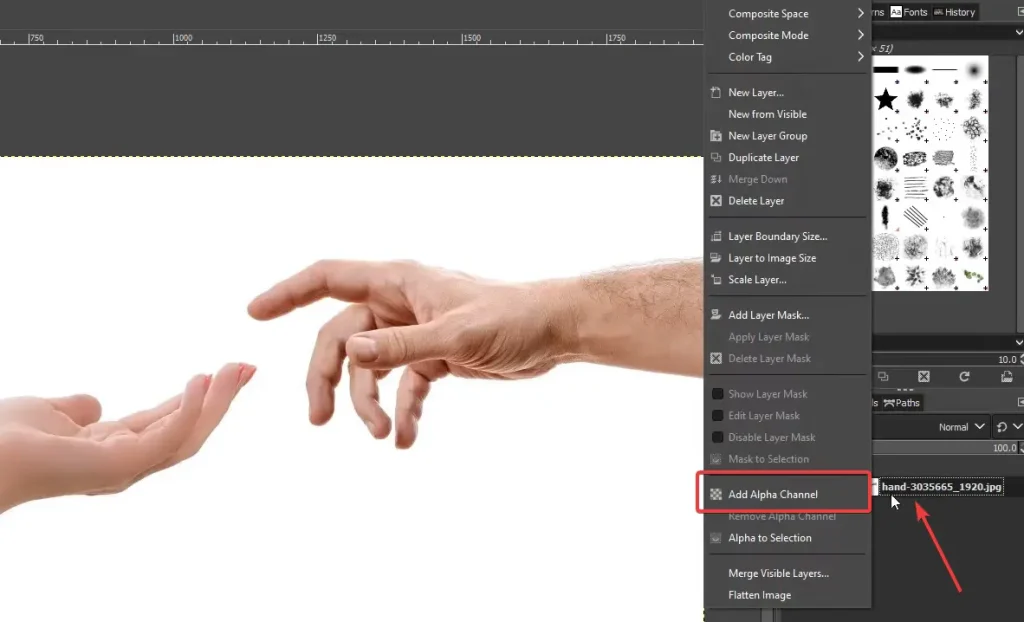
Why do this? Adding an alpha channel simply means that transparency will now be supported on this specific image layer.
Step 2: Select the Background
Now it’s time to target the background you want to remove.
Head over to your toolbox and select your Magic Wand tool (also known as the Fuzzy Select tool in GIMP).
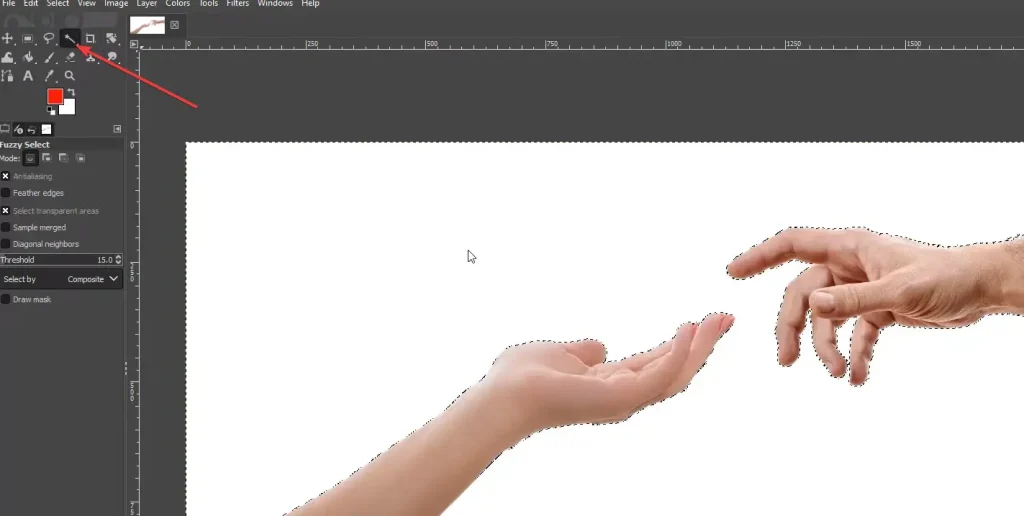
Click directly onto the solid white background (or whatever color your background is). You should see a dashed line appear, highlighting the entire background area.
Step 3: Delete the Background
Here comes the fun part! With your background selected, simply hit the Delete key on your keyboard.
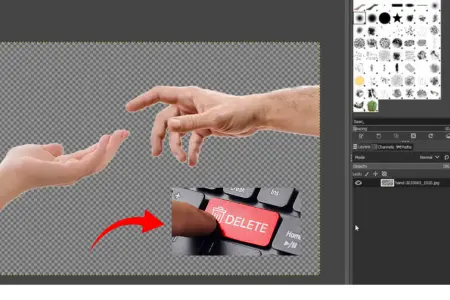
To get a clear view of your new cutout, go to the top menu, click on Select, and then choose None.
You will instantly notice that your solid background has been replaced by a checker box pattern. Don’t worry, those checkers won’t show up in your final image—that pattern is just GIMP’s way of showing you that the area is now completely transparent.
GIMP is fine for one image. For a catalogue — or for hair, chains and anything transparent, where fuzzy select gives up — our background removal service does it by hand from $0.39.
Step 4: Export Your Image as a PNG
You’ve successfully cut out your object, but how do you save it so it stays transparent? The secret is in the file format.
- Go to File in the top menu and select “Export As”.
- Scroll through the file types and select PNG.
It is incredibly important to export your image as a PNG because this file format preserves the transparency. If you export it as a standard JPEG, it will automatically fill your transparent background with solid white again. By choosing PNG, whenever you import this image into a new project, it will maintain its clean, transparent background.
Wrapping Up
And that is it! You can repeat this simple process with all of your other images—just use the Magic Wand to cut out the object, delete the background, and export it as a PNG.
If you found this guide helpful, let us know in the comments below. Thanks for reading, and have a nice day designing!