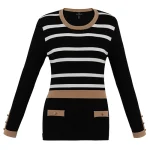
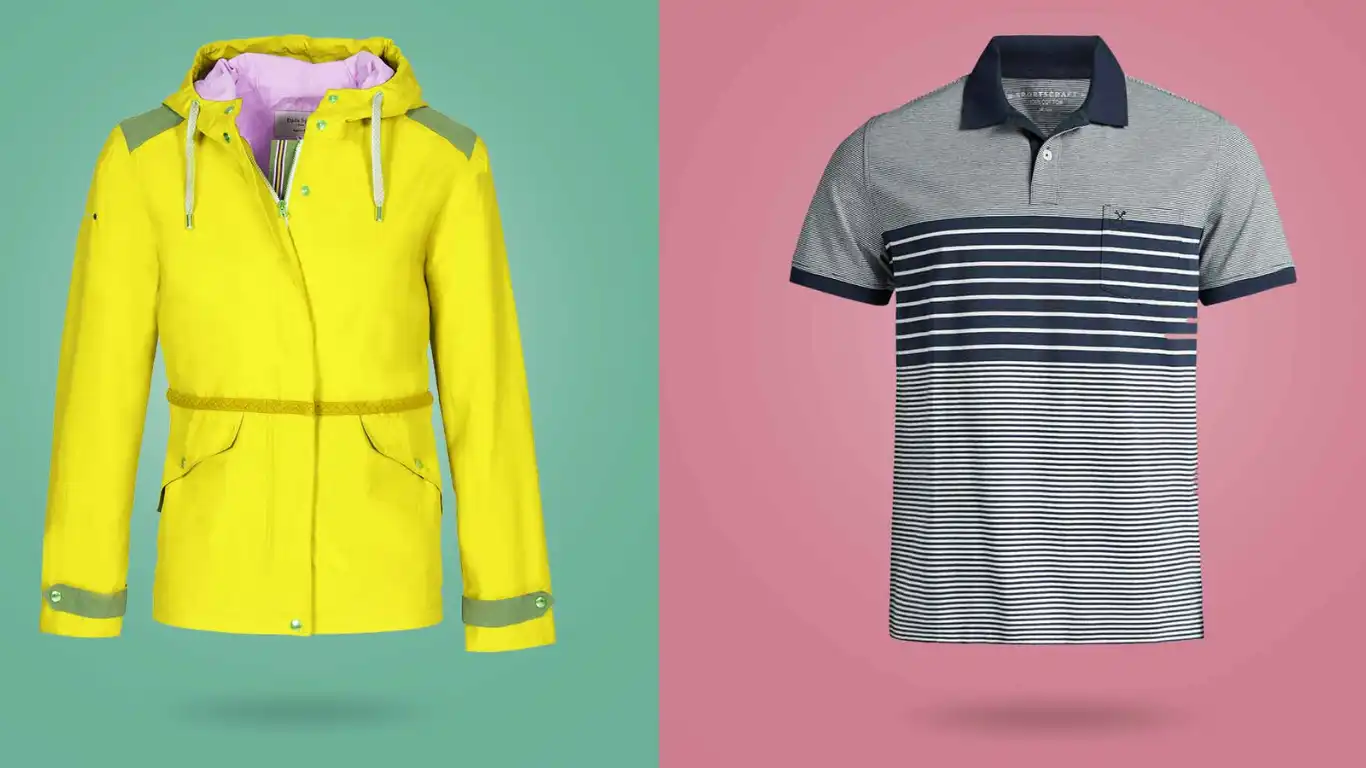
If you’re an eCommerce seller, fashion brand, clothing retailer, or product photographer, you already know that product images can make or break a sale.
According to multiple eCommerce studies, shoppers are significantly more likely to purchase clothing items when they can clearly visualize the shape, fit, and structure of the garment. That’s why ghost mannequin photography has become one of the most widely used product image techniques for fashion eCommerce.
Whether you’re selling on Shopify, Amazon, WooCommerce, Etsy, or eBay, professional ghost mannequin images help create a clean, distraction-free shopping experience while maintaining the natural shape of the garment.
The challenge?
Professional photo editing software such as Adobe Photoshop can be expensive and time-consuming to learn. Many small businesses and startup fashion brands need affordable alternatives.
The good news is that several free ghost mannequin apps and editing tools can help you create invisible mannequin effects without investing in expensive software.
In this guide, we’ll compare the best free ghost mannequin apps, explain how ghost mannequin editing works, discuss AI-powered alternatives, and help you choose the right tool based on your experience level and business needs.
What Is Ghost Mannequin Editing?
Ghost mannequin editing, also known as the invisible mannequin effect or neck joint editing, is a post-production technique used to create the appearance that clothing is being worn by an invisible model.
The process combines multiple product photos to remove visible mannequins, models, or hangers while preserving the natural shape and fit of the garment.
This technique is commonly used for:
- T-Shirts
- Jackets
- Hoodies
- Dresses
- Sportswear
- Activewear
- Lingerie
- Fashion Accessories
The result is a professional product image that highlights the garment itself rather than the person or mannequin displaying it.
Why Ghost Mannequin Images Improve eCommerce Conversions
Ghost mannequin photography offers several advantages over flat lay photography and traditional mannequin photos.
Better Product Visualization
Customers can see how the garment fits and hangs naturally.
Consistent Product Catalog
All products maintain a professional, standardized appearance across your store.
Reduced Distractions
Buyers focus entirely on the product instead of the model or mannequin.
Increased Conversion Rates
Professional product photography often leads to higher engagement and better conversion rates across eCommerce platforms.
What Makes a Good Ghost Mannequin App?
Not all photo editing tools are suitable for apparel retouching.
The best ghost mannequin software should offer:
- Background Removal
- Layer Support
- AI Cutout Tools
- Clone Stamp Tools
- Shadow Recovery
- Neck Joint Editing Capability
- High-Resolution Export
- Batch Processing
When evaluating free tools, we tested each application based on editing flexibility, ease of use, image quality, and overall workflow efficiency.
The 5 Best Free Ghost Mannequin Apps (Tested and Compared)
We’ve reviewed and compared five of the most accessible apps that can help you create ghost mannequin effects even without expensive software like Photoshop. Some use AI, others offer manual control, and a few give you a blend of both.
Let’s go one by one.
1. GIMP – The Open-Source Powerhouse
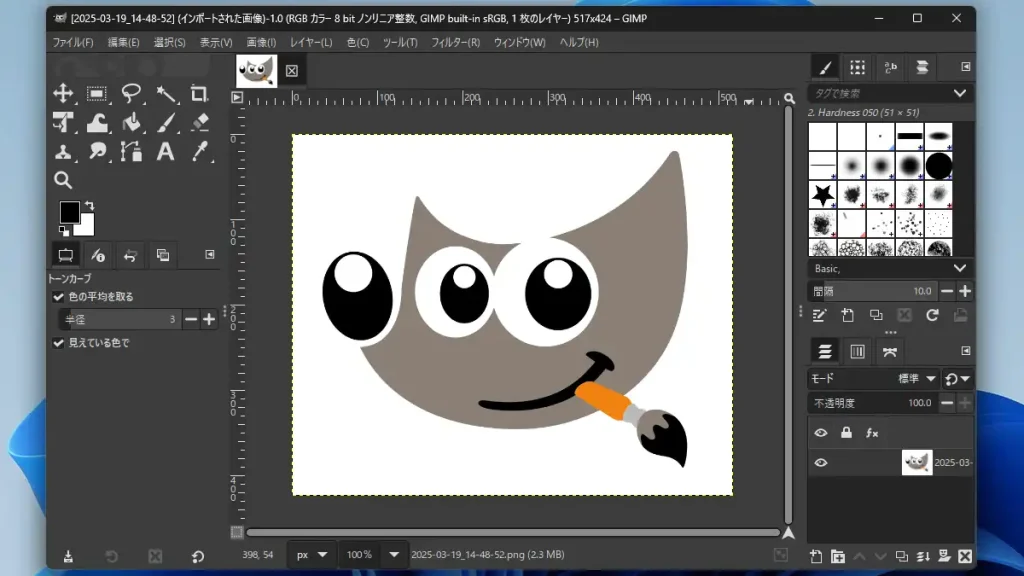
If you’re looking for Photoshop-like editing without the cost, GIMP is your best bet.
GIMP (GNU Image Manipulation Program) is a completely free, open-source image editor that runs on Windows, macOS, and Linux. It’s been around since the 90s, and it’s loved by power users who don’t mind a learning curve.
Why GIMP Works for Ghost Mannequin Editing
Ghost mannequin editing usually involves layer masks, cloning, and precise selection tools. GIMP handles all of these quite well. With a little practice, you can:
- Combine front and back images
- Remove the mannequin cleanly
- Match shadows and lighting manually
It doesn’t offer one-click automation, but it gives full control, and the results are as good as what you’d get from paid software—if you know what you’re doing.
Who Is GIMP Best For?
Photographers, designers, or sellers with editing experience who are on a tight budget but need high-quality results.
What You Should Know
- Price: Free, always.
- Pros: No limits, plugin support, community forums, and advanced features.
- Cons: Not beginner-friendly, no built-in ghost mannequin presets.
If you’re willing to learn (or already know the basics), GIMP is easily the most powerful free solution available.
2. Pixlr – Browser-Based Simplicity with AI Magic
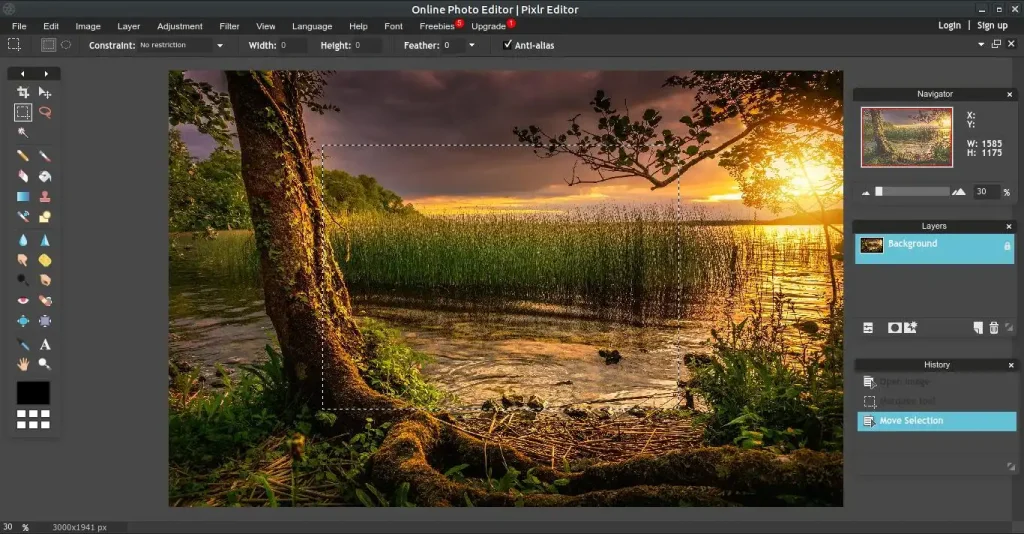
Don’t want to install software? Pixlr is your answer.
Pixlr is a web-based photo editor that runs entirely in your browser. It also has apps for iOS and Android, which makes it perfect for on-the-go edits.
What makes Pixlr shine is its AI Cutout tool, which can automatically remove backgrounds and mannequins. It’s not built specifically for ghost mannequin workflows, but it’s flexible enough to be adapted.
Key Strengths
The platform is beginner-friendly and intuitive. You upload your product photo, use the AI Cutout feature, and then drop in your insert image (like the neck or label shot). A few manual tweaks later, and you’ve got a basic ghost mannequin effect.
Where Pixlr Fits In
Best for eCommerce startups or individual sellers who need quick edits and don’t want to fuss with technical setups.
Quick Facts
- Price: Free version available (Premium starts at ~$1.99/mo)
- Pros: No installation, easy to use, AI-powered tools
- Cons: Ads in free tier, some features locked behind premium
- Special Feature: AI Cutout tool for automatic background and mannequin removal
Pixlr doesn’t match Photoshop or GIMP in depth, but it wins for speed and accessibility.
3. Fotor – Batch Editing Made Easy
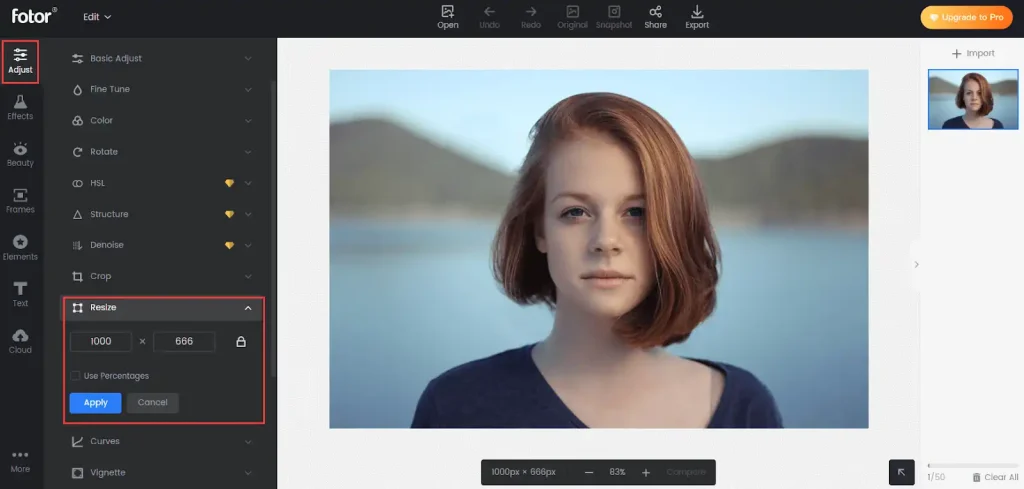
Fotor is a hybrid app—available both on the web and as a downloadable desktop tool. It’s not just an editor, it’s an entire suite geared toward product photography and marketing visuals.
What makes Fotor stand out in this space is its batch editing feature. If you’re working with a large volume of product images, Fotor helps you automate repetitive tasks—ideal for those managing hundreds of listings.
Why Fotor Makes Sense for Ghost Mannequin
While it doesn’t have a dedicated ghost mannequin workflow, Fotor’s AI background remover and object eraser tools allow you to cut out mannequins or unwanted elements with one click.
From there, you can layer your insert shot manually, add shadows, and fine-tune the contrast for a believable effect.
Who Will Benefit Most?
Small brands, Amazon sellers, and virtual assistants handling bulk product uploads.
Fotor Overview
- Price: Free (Premium from ~$3.33/month)
- Pros: Batch editing, AI enhancements, beginner-friendly
- Cons: Less control than GIMP or Photoshop, occasional artifacts in AI edits
- Specialty: AI-powered bulk processing for product image workflows
If you’re handling large quantities of photos and need speed more than perfection, Fotor is a solid choice.
4. Canva – Design Meets Simplicity
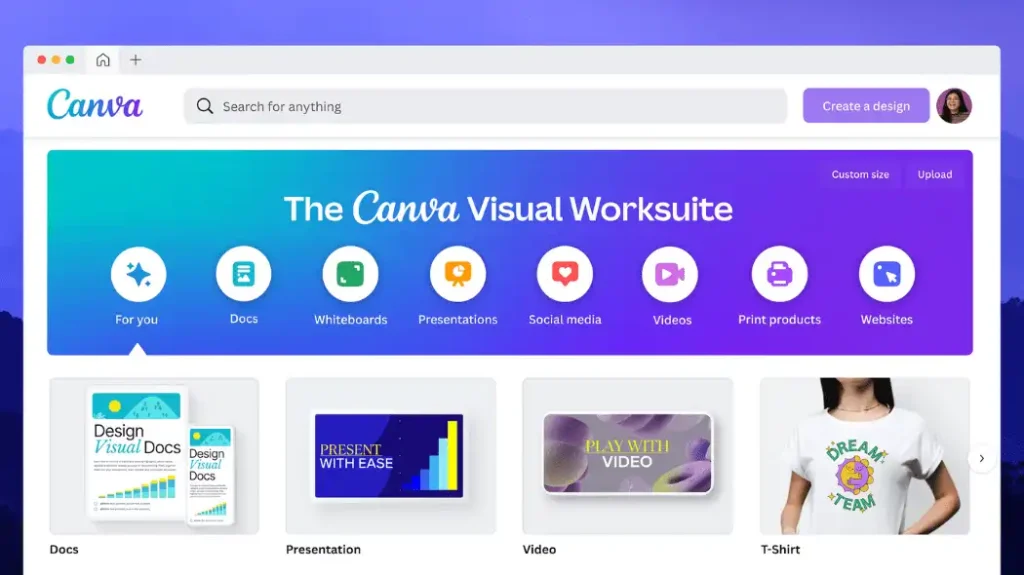
You might not think of Canva as a photo editor, but it’s a fantastic tool for combining product images with marketing design. And yes—it can help with ghost mannequin effects too.
Canva offers a background remover in its free plan, which is surprisingly effective. While it’s not tailored for ghost mannequin editing, it’s perfect for sellers who need clean product cutouts to insert into branded layouts.
What You Can Do with Canva
- Remove the background and the mannequin
- Add branded frames, callouts, or text
- Prepare images for social, email, or ad campaigns
Canva isn’t meant for precise photo manipulation, but for fast turnarounds and branded content; it’s hard to beat.
Best For?
Social media managers, Shopify sellers, or anyone creating promotional graphics.
What You Should Know
- Price: Free (Pro plan starts at ~$12.99/mo)
- Pros: Drag-and-drop interface, templates, fast editing
- Cons: Limited manual editing, watermarking in some exports
- Unique Feature: Seamless design + editing combo for marketing
If you need both product cutouts and a way to instantly design flyers or Instagram posts, Canva covers both ends of the job.
5. Remove.bg + Photopea Combo – AI + Photoshop Feel, for Free
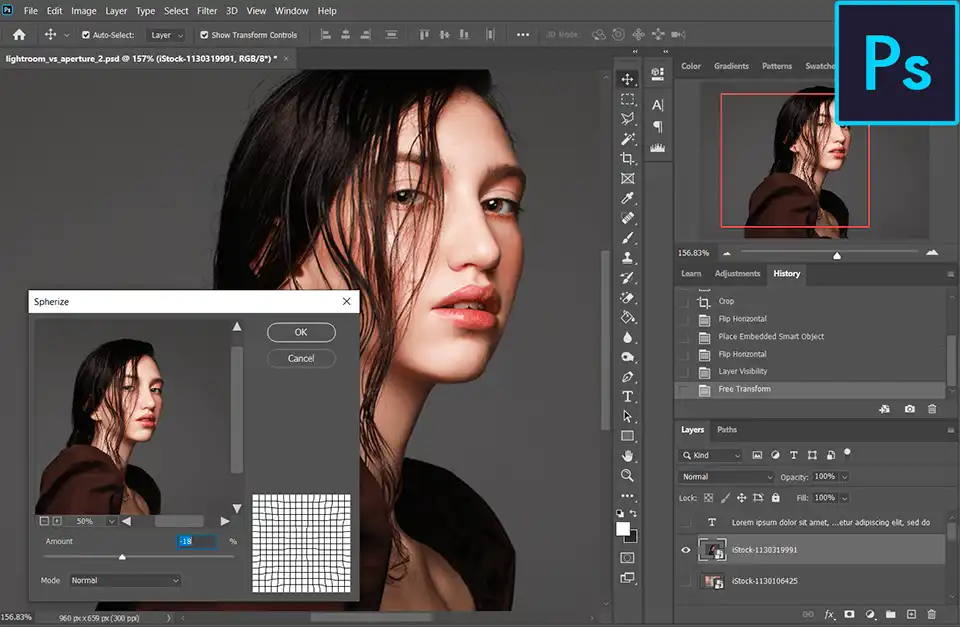
This last pick isn’t a single app—it’s a combo that works brilliantly together: Remove.bg for automatic background (and mannequin) removal, and Photopea for layered editing, similar to Photoshop.
Remove.bg is a web tool that uses AI to remove backgrounds in seconds. Just upload a photo, and it gives you a transparent PNG in one click. It works very well for mannequin removal, especially in simple studio shots.
Once that’s done, you can use Photopea (also browser-based) to:
- Layer in neck inserts or label shots
- Clone or blend areas
- Add shadows, contrast, and final adjustments
Who Should Use This Combo?
DIY photographers or Amazon/eBay sellers who want more polish than Canva or Fotor but don’t want to install anything.
Quick Breakdown:
- Remove.bg Price: Free with limitations (HD downloads may require credits)
- Photopea Price: Free with ads (Premium ad-free ~$5/month)
- Pros: Fast AI + Photoshop-like layers and tools
- Cons: No batch processing, Remove.bg has download limits
This duo is surprisingly effective for small businesses that want free tools with power—without a long learning curve.
How to Create a Ghost Mannequin Image with Free Tools (Step-by-Step)
Many readers wonder: Can I actually do ghost mannequin editing without Photoshop? Absolutely—here’s a simplified workflow using the Remove.bg + Photopea combo:
Step 1: Take Two Photos
- One with the mannequin (front view)
- One with the inside label/neck area (mannequin removed or reversed)
Step 2: Remove Mannequin from Main Image
- Upload the image to Remove.bg
- Download the transparent PNG
Step 3: Open in Photopea
- Load both the main image and neck insert into Photopea
- Use layer masks to blend the neck insert inside the collar area
- Erase or feather as needed for realism
- Use the clone stamp or brush tools to adjust shadows
Step 4: Export Your Image
- Save as JPG or PNG for web upload
The first time may take 20–30 minutes, but once you learn the workflow, you can produce a ghost mannequin image in under 10 minutes.
Comparing Free Ghost Mannequin Apps: A Quick Comparison Table
| Tool/Combo | AI-Powered? | Manual Control | Best For | Platform | Free Plan Limits |
| GIMP | No | High | Skilled editors | Desktop | Unlimited |
| Pixlr | Yes | Medium | Beginners, quick edits | Web/Mobile | Ads, limited advanced tools |
| Fotor | Yes | Medium | Batch processing, eCom sellers | Web/Desktop | Watermarks in free plan |
| Canva | Yes | Low | Branded visuals, promos | Web/Mobile | Background remover in free |
| Remove.bg + Photopea | Yes + No | High | Precision without install | Web | HD limits (Remove.bg) |
When Free Isn’t Enough: Consider Outsourcing
Sometimes, even the best tools aren’t enough. You might not have the time, patience, or skill to get consistent results across 50, 100, or 500 product images.
That’s where Pixel Retouching can help.
We specialize in ghost mannequin editing, background cleanup, color correction, and more. Whether you’re a solo seller, a brand studio, or a fashion photographer, we offer affordable, scalable editing solutions tailored for eCommerce.
Our team works behind the scenes to make your products look perfect, so you can focus on growing your business.
Frequently Asked Questions
What is the best free ghost mannequin app?
GIMP offers the most advanced editing capabilities, while Pixlr provides the easiest learning curve.
Can AI create ghost mannequin images?
Yes, but AI tools still require manual adjustments for professional-quality apparel photography.
Is Canva good for ghost mannequin editing?
Canva is useful for simple product cutouts but lacks advanced retouching features.
Can I create ghost mannequin effects on mobile?
Yes. Pixlr, Canva, and several AI-powered mobile apps support basic ghost mannequin workflows.
Do I need Photoshop for ghost mannequin editing?
No. Tools like GIMP, Photopea, Pixlr, and Fotor can achieve excellent results without Photoshop.
Final Verdict
The best free ghost mannequin app depends on your skill level and business goals.
- Choose GIMP if you need maximum editing control.
- Choose Pixlr for quick browser-based editing.
- Choose Fotor for bulk product image workflows.
- Choose Canva for marketing-focused content.
- Choose Remove.bg + Photopea for the best balance of AI automation and professional editing capabilities.
For fashion brands, clothing retailers, and high-volume eCommerce sellers, combining these tools with professional ghost mannequin editing services often delivers the best results in terms of image quality, efficiency, and conversion performance.