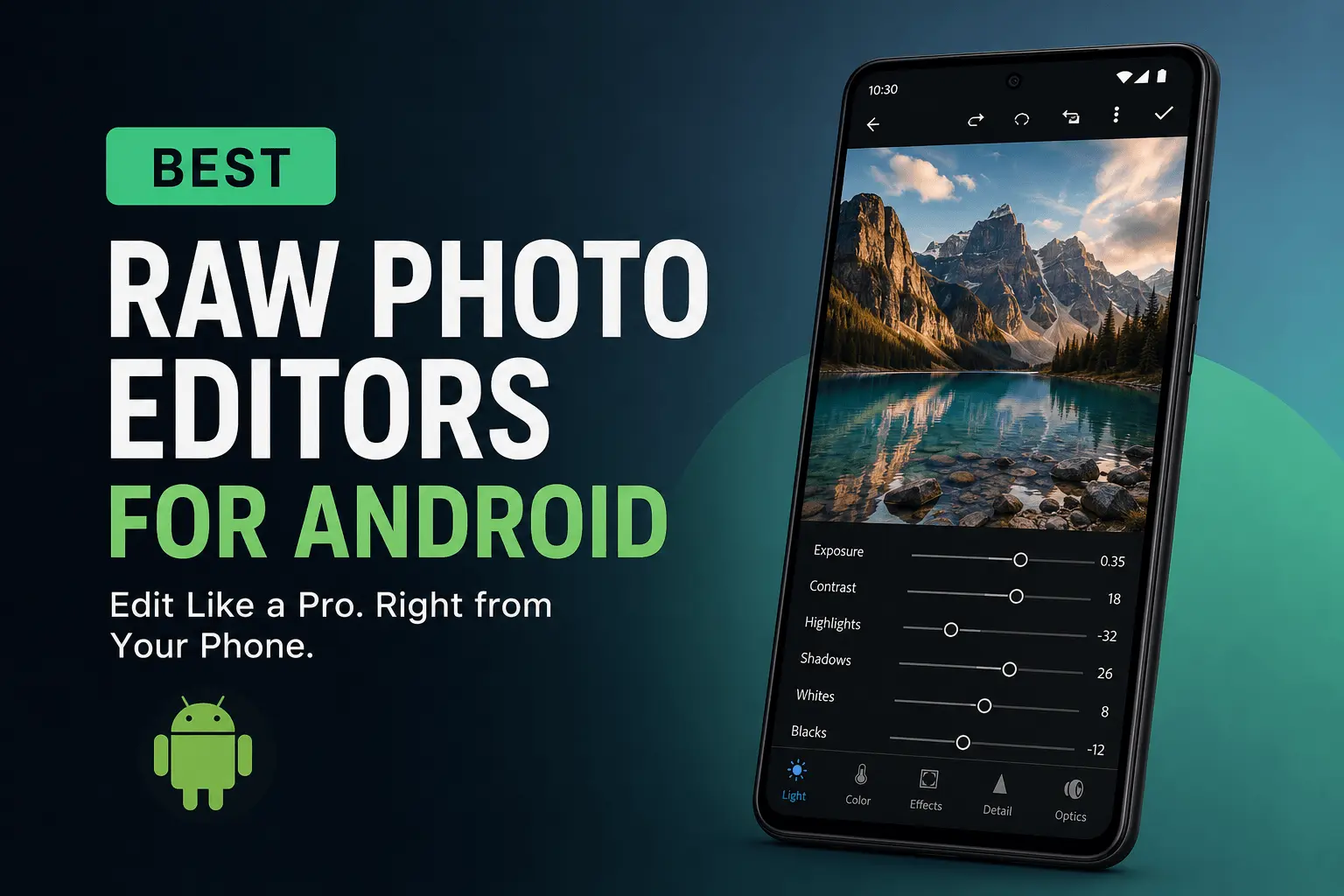
Smartphone cameras have improved dramatically over the last few years, but image quality isn’t determined by hardware alone. The real difference between an average photo and a professional-looking image often happens during post-processing.
That’s where RAW photo editing comes in.
For photographers, content creators, travelers, and mobile photography enthusiasts, RAW files provide significantly more editing flexibility than standard JPEG images. Thanks to modern Android devices and increasingly powerful editing apps, you no longer need a desktop workstation to process professional-quality photos.
In this guide, we’ll explore the best RAW photo editors for Android, explain what makes RAW editing valuable, and help you choose the right app based on your workflow, experience level, and editing goals.
What Is a RAW Photo File?
A RAW file is an unprocessed image captured directly by a camera sensor. Unlike JPEG files, which are compressed and processed automatically by the camera, RAW images retain significantly more data.
Think of RAW files as digital negatives.
They contain more information about colors, shadows, highlights, and exposure, allowing photographers to make extensive adjustments without sacrificing image quality.
RAW vs JPEG: Why It Matters
| Feature | RAW | JPEG |
|---|---|---|
| Image Data | Maximum | Compressed |
| Editing Flexibility | Excellent | Limited |
| Highlight Recovery | Strong | Weak |
| Dynamic Range | High | Moderate |
| File Size | Larger | Smaller |
| Professional Use | Preferred | Common |
For landscape photography, portraits, travel photography, and commercial work, RAW files provide much greater creative control.
Why More Android Users Are Editing RAW Photos
A few years ago, RAW editing was mostly limited to DSLR and mirrorless camera users working on desktop software.
Today, flagship Android smartphones from Samsung, Google, Xiaomi, OnePlus, Vivo, and Sony can capture RAW images directly from their camera systems.
This shift has created a new generation of mobile photographers who expect desktop-level editing tools on their phones.
Several factors are driving this trend:
- Improved smartphone camera sensors
- AI-assisted editing tools
- Faster mobile processors
- Cloud-based photo workflows
- Growing creator economy
As a result, Android photo editing apps have evolved from simple filter applications into professional editing platforms.
What Makes a Great RAW Photo Editor for Android?
Not every photo editing app supports genuine RAW processing.
Some apps can open RAW files but lack the tools needed for serious editing.
When evaluating RAW editors, professionals typically look for several key capabilities.
1. Native RAW File Support
A quality editor should support common RAW formats such as:
- DNG
- CR3
- NEF
- ARW
- RAF
- ORF
The broader the format support, the more versatile the application becomes.
2. Non-Destructive Editing
Professional workflows rely on non-destructive editing.
This means your original RAW file remains untouched while all edits are stored separately.
You can revisit and modify adjustments at any time without losing image quality.
3. Advanced Exposure Controls
RAW photography shines when recovering details.
Look for tools that allow:
- Highlight recovery
- Shadow lifting
- Exposure correction
- Contrast adjustments
- Tone curve editing
These controls can rescue images that would otherwise appear unusable.
4. Selective Editing and Masking
Modern photo editing increasingly depends on local adjustments.
Advanced masking tools allow photographers to:
- Brighten specific subjects
- Darken skies
- Enhance skin tones
- Apply targeted color corrections
Without masking, editing options become significantly limited.
5. Color Grading Features
Professional images often stand out because of their color treatment.
Strong RAW editors provide:
- HSL adjustments
- Color wheels
- Split toning
- Calibration controls
- Custom presets
These tools help create a consistent visual style across an entire portfolio.
5 Best RAW Photo Editors for Android
After evaluating features, workflow efficiency, learning curve, and professional usability, these are the strongest RAW editing apps available for Android users today.
1. Adobe Lightroom Mobile: The Professional Standard
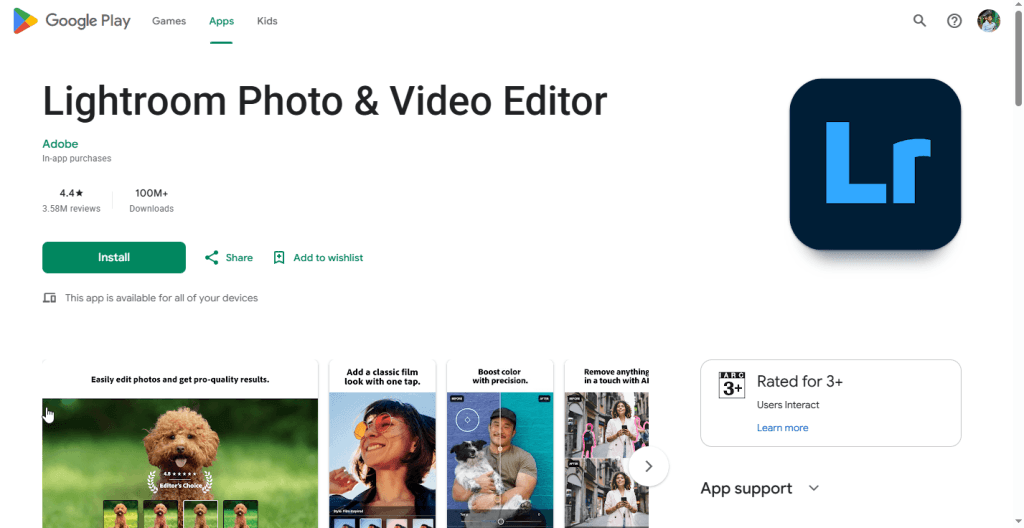
Lightroom Mobile remains the benchmark for mobile RAW editing.
Originally developed as an extension of Adobe’s desktop ecosystem, the app has matured into a full-featured editing platform capable of handling complex workflows.
Strengths
- Industry-leading RAW processing
- AI-powered masking
- Excellent color grading tools
- Cloud synchronization
- Extensive preset ecosystem
- Batch editing capabilities
Limitations
- Some advanced features require a subscription
- Beginners may find the interface overwhelming
Best For
Professional photographers, content creators, and users who want desktop-quality editing on mobile devices.
2. Snapseed: The Best Free RAW Editor
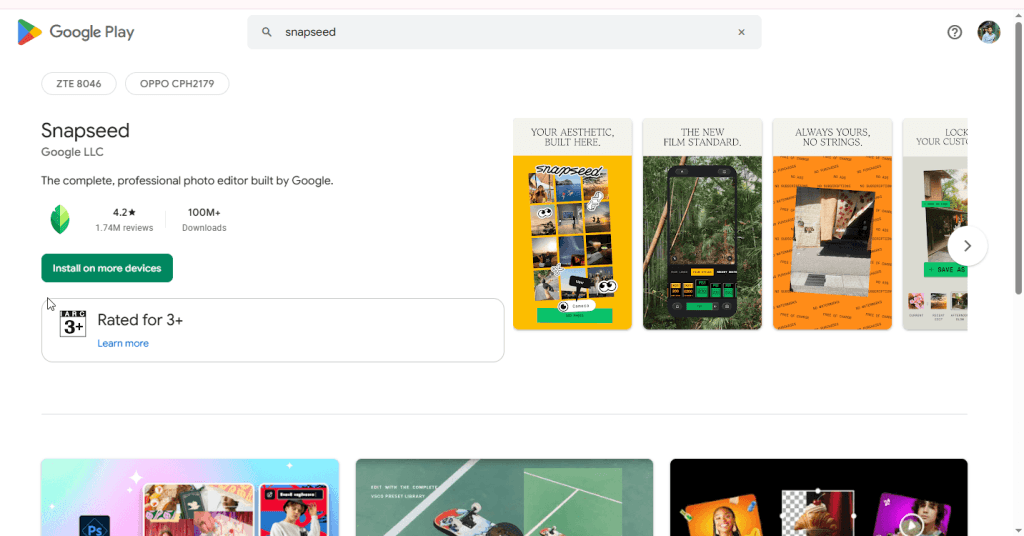
Google’s Snapseed continues to be one of the most impressive free photo editing applications available.
Despite its simple interface, it offers genuine RAW editing support and several advanced tools that rival paid competitors.
Strengths
- Completely free
- DNG RAW support
- Intuitive user experience
- Selective adjustments
- Healing tool
- Powerful tonal controls
Limitations
- Limited organizational features
- No cloud workflow
- Fewer professional collaboration options
Best For
Beginners and hobbyists seeking a powerful free RAW editor.
3. VSCO: Built for Creative Photography
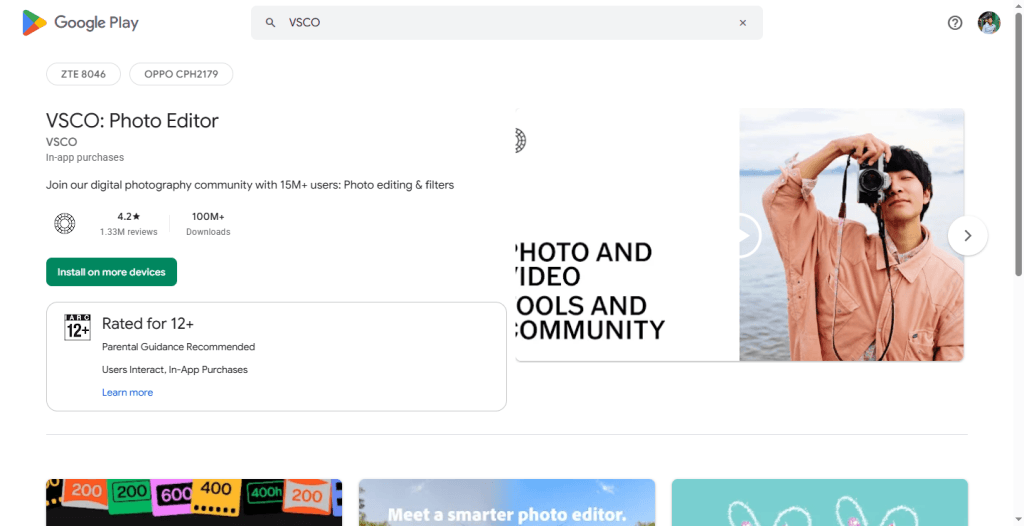
VSCO approaches editing differently.
Instead of focusing exclusively on technical corrections, it emphasizes creative aesthetics and film-inspired color grading.
Photographers who prioritize visual storytelling often appreciate its editing philosophy.
Strengths
- Premium film emulation presets
- Clean interface
- Consistent visual style creation
- Strong community ecosystem
Limitations
- Advanced features require membership
- Less comprehensive than Lightroom
Best For
Lifestyle creators, travel photographers, and social media professionals.
4. Polarr: AI-Powered Mobile Editing
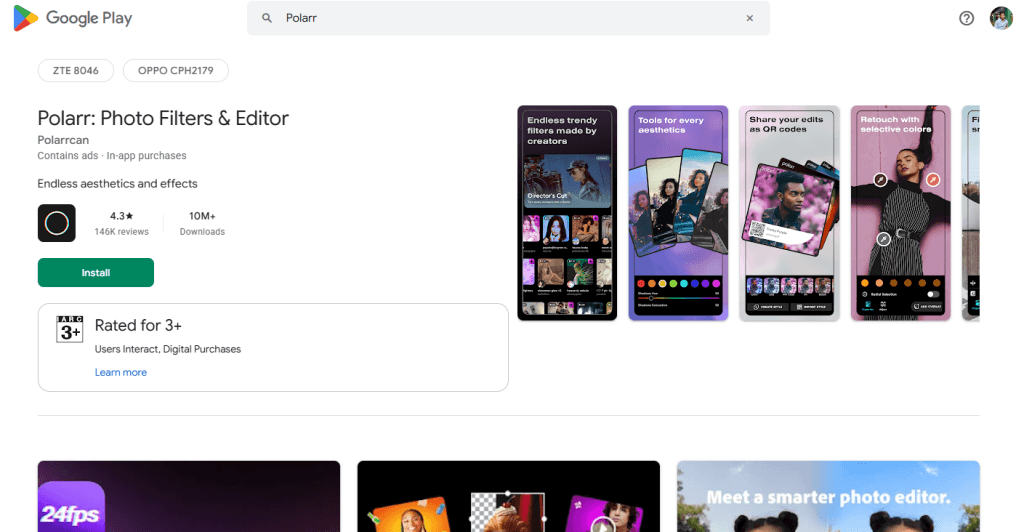
Polarr has quietly become one of the most innovative Android editing platforms.
Its AI-driven tools help automate complex adjustments while still giving users manual control.
Strengths
- AI object recognition
- Smart enhancement tools
- Custom filter creation
- Face and portrait retouching
Limitations
- Smaller ecosystem
- Fewer educational resources
Best For
Creators who want faster editing workflows without sacrificing quality.
5. ON1 Photo RAW Mobile
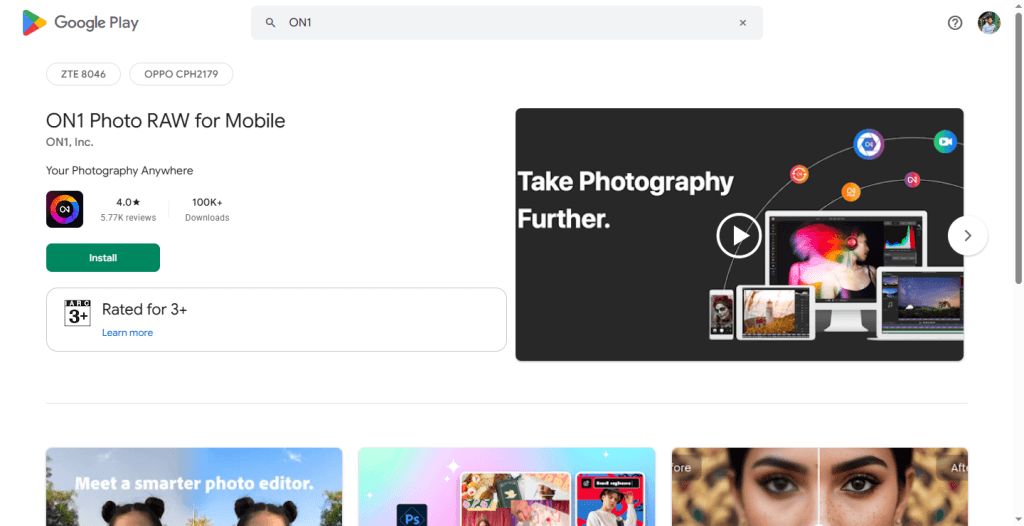
ON1 is well known among desktop photographers and has successfully extended many of its capabilities to mobile devices.
Its strength lies in balancing organization, editing, and workflow management.
Strengths
- Professional RAW engine
- Asset management features
- Advanced effects
- Layer-based editing
Limitations
- Higher learning curve
- More demanding on device performance
Best For
Experienced photographers seeking an alternative to Adobe’s ecosystem.
Lightroom vs Snapseed: Which One Should You Choose?
This remains one of the most common questions among Android photographers.
The answer depends largely on your editing goals.
Choose Snapseed if:
- You are new to RAW editing
- You want a completely free solution
- You edit photos occasionally
- Simplicity matters more than advanced features
Choose Lightroom Mobile if:
- Photography is part of your business
- You need professional workflows
- You use multiple devices
- Consistency and scalability are priorities
For serious photographers, Lightroom generally offers more room for growth.
For casual users, Snapseed remains difficult to beat.
A Professional RAW Editing Workflow on Android
Many beginners assume professional editing requires dozens of adjustments.
In reality, experienced photographers often follow a simple, repeatable workflow.
Step 1: Correct Exposure
Start by balancing overall brightness.
Focus on recovering highlights and lifting shadows before making stylistic decisions.
Step 2: Fix White Balance
Accurate color temperature creates a natural foundation for all subsequent edits.
Incorrect white balance can make skin tones and landscapes appear unrealistic.
Step 3: Adjust Contrast
Use contrast carefully.
Too much contrast can destroy subtle details that RAW files preserve.
Step 4: Fine-Tune Colors
Modify individual color channels to improve realism and visual impact.
Professional photographers often spend more time on color grading than any other editing step.
Step 5: Apply Selective Enhancements
Use masks to guide viewer attention toward the subject.
Selective editing frequently produces more natural results than global adjustments.
Step 6: Export Thoughtfully
Different platforms require different export settings.
Images intended for Instagram, websites, portfolios, or print should each be optimized separately.
Common RAW Editing Mistakes to Avoid
Even powerful editing tools can produce poor results when misused.
Avoid these common mistakes:
Over-Saturation
Excessive colors often make images appear amateurish.
Over-Sharpening
Sharpness should enhance detail, not create halos and artifacts.
Excessive HDR Effects
Extreme highlight and shadow recovery can make photos look artificial.
Ignoring Composition
Editing cannot fix weak composition.
Strong photographs begin with thoughtful framing.
Applying Presets Without Adjustment
Presets should serve as starting points, not final edits.
Every image requires individual attention.
Mobile RAW editing is good enough for a handful of frames. Past that, photo editing for photographers is faster than doing it on a phone.
Final Verdict
The best RAW photo editor for Android ultimately depends on your goals.
If you want the most complete professional solution, Lightroom Mobile remains the strongest choice. Its advanced tools, cloud ecosystem, and scalable workflow make it the preferred option for serious photographers.
If you’re looking for the best free RAW editor, Snapseed delivers exceptional value without requiring a subscription.
Meanwhile, VSCO, Polarr, and ON1 Photo RAW Mobile each serve specific audiences seeking creative styling, AI-powered efficiency, or alternative professional workflows.
The most important takeaway is this: capturing RAW images is only half the process. The real creative advantage comes from how effectively you edit them. With today’s Android apps, professional-quality results are no longer limited to desktop workstations—they can fit comfortably in your pocket.