
Background removal is the edit every online seller needs and the one that looks easiest. One click, product on white, done. It is easy right up to the point where the product has hair, mesh, glass, an open weave or a soft edge, and then it becomes the hardest thing on this list.
The prompts below are written to give a model something specific to follow at the edge, which is where every cut-out succeeds or fails. Upload your own photograph, paste one in, and then look at the boundary at 100 percent. That single habit will tell you more than any tool comparison.
Please read this before you scroll: the images in this article are not AI output.
Every before and after on this page is real client work, retouched by hand by the team at Pixel Retouching. We have used our own portfolio deliberately, because we would rather show you the standard these prompts are aiming at than show you a set of AI attempts and call them finished.
So treat the sliders as the target, not as a promise. A good prompt will get a straightforward piece surprisingly close to what you see here. It will not get a difficult one all the way there, and the note under each prompt tells you exactly where the gap usually opens up.
How to brief a cut-out
Name the hard part yourself. If the product has a handle with a gap under it, say so. Enclosed areas are the most commonly missed part of any selection, by software and by people.
Ban the halo explicitly. “No halo, no dark rim, no soft fringe” is worth including every time, because a faint rim is the default outcome and the model will not volunteer to avoid it.
Say what happens to shadows. Keep the original contact shadow, replace it, or remove it entirely, but decide, because a model left to choose will usually invent one that contradicts the light.
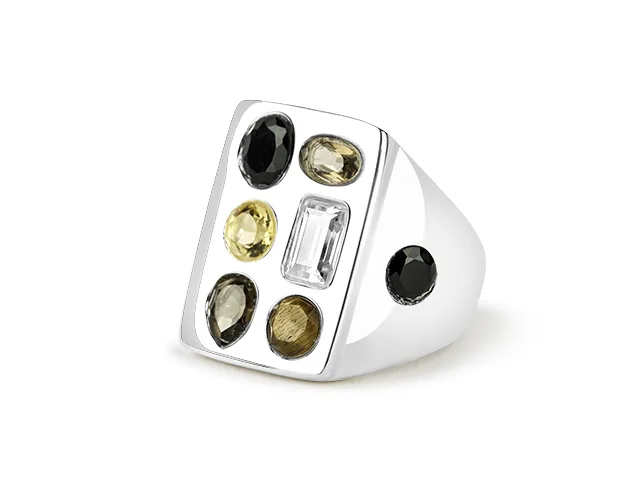
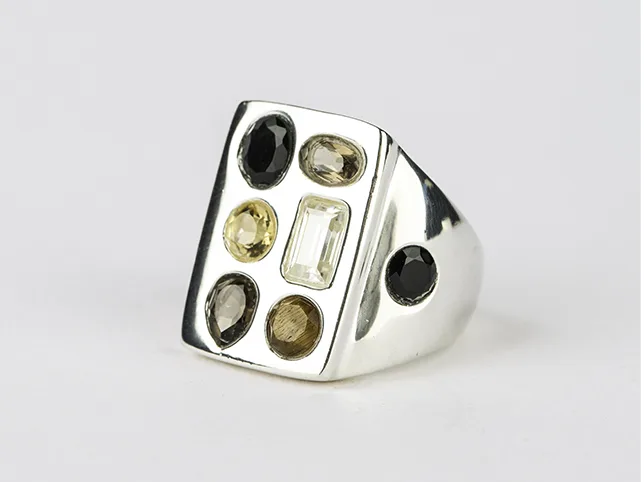
1. A straightforward product cut to white
Before
After
Background removed to white. Drag to compare.
Remove the background from this product photograph and replace it with pure white at RGB 255, 255, 255. Follow the true edge of the product precisely. Leave no halo, no dark rim and no soft fringe along any part of the boundary. Do not alter the product’s colour, shape or texture. Remove the original shadow entirely and add nothing in its place.
What to watch for: the boundary at 100%. Look along the whole edge, not just the top. Leaks tend to appear where the product was closest in tone to its original background.
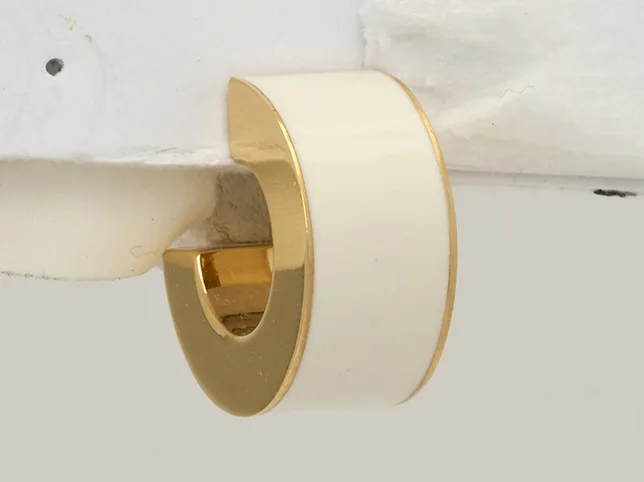
2. Products with enclosed gaps

Before
After
Product isolated for a layout.
Cut this product out onto a transparent-equivalent pure white background. Clear the background from every enclosed area as well as the outside edge, including any gap under a handle, inside a strap, between components or through an opening. All background areas must be the same pure white as the surrounding background, with no grey patches left inside the product.
What to watch for: interior holes. This is the classic miss: a perfect outer edge and a grey patch under the handle. Look inside the product, not around it.
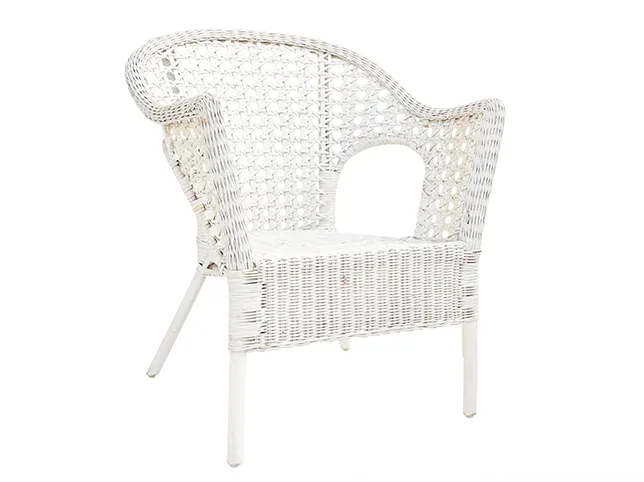
3. Open weave and lattice
Before
After
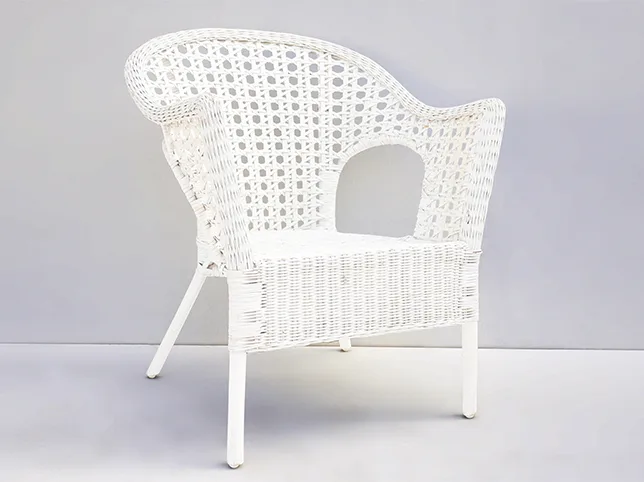
Rattan chair cut out through open weave. Hundreds of interior holes in one product.
Cut this woven product out onto pure white. The background must be removed from every opening in the weave, individually, so white shows through each gap exactly as the original background did. Do not fill, simplify or regularise the weave pattern. Keep every strand and its shadowing intact. No halo along any strand edge.
What to watch for: a filled weave. When the count of openings gets high, models stop cutting and start painting a texture that resembles weave. Compare a corner against your original.
4. Hair and soft fibres


Before
After
Stray hair clean-up. Where a selection stops being a selection.
Remove the background behind this subject and replace it with a clean even background. Along the hairline, preserve individual strands including the fine loose ones, rather than cutting a hard outline around the head. Do not paint in new hair. Remove only genuinely stray strands that cross the face or stand isolated against the background. No halo of the original background colour around the hair.
What to watch for: a helmet edge. The tell-tale result is a head cut with a smooth outline and every wisp gone. It reads as fake instantly, even to someone who could not name why.
5. Glass and transparency

Before
After
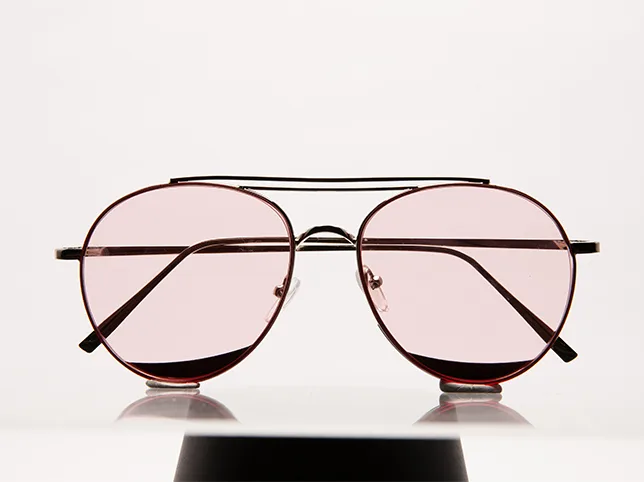
Transparent glass extraction. What is behind the product has to change too.
Extract this transparent product onto a pure white background. The background must show through the transparent areas at the new white, not carry over the old background colour. Keep the refraction, the edge thickness and the highlights that make the material read as glass. Do not render the product as opaque, and do not paint a flat tint where the glass should be see-through.
What to watch for: carried-over colour. If the original background was grey, generated glass often stays faintly grey inside: a product that has a ghost of the old studio still visible in it.
6. A person, cut for a listing

Before
After
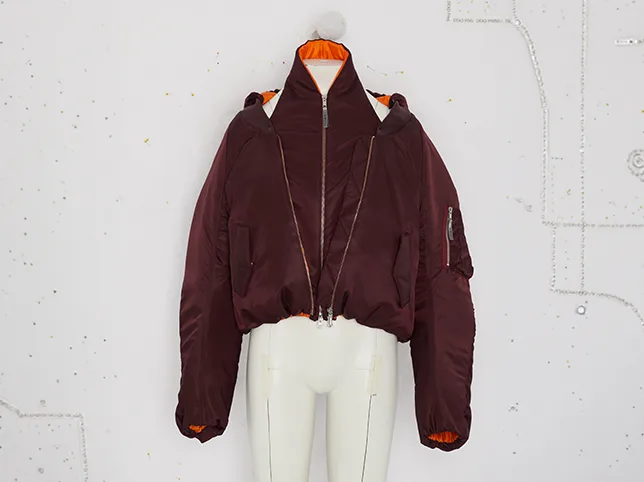
Model shot cut out to white.
Cut this model out onto a pure white background at RGB 255, 255, 255. Follow the true silhouette including the hairline, the gap between the arm and the body, and any space between the legs. Keep the garment’s edge sharp and its colour unchanged. No halo, no dark outline, no glow. Do not retouch the model, the skin or the garment: the cut-out is the only change.
What to watch for: negative space. Gaps between limbs and body are enclosed areas, and enclosed areas are missed. Look between the arm and the waist first.
7. A marketplace tile with margin rules

Before
After
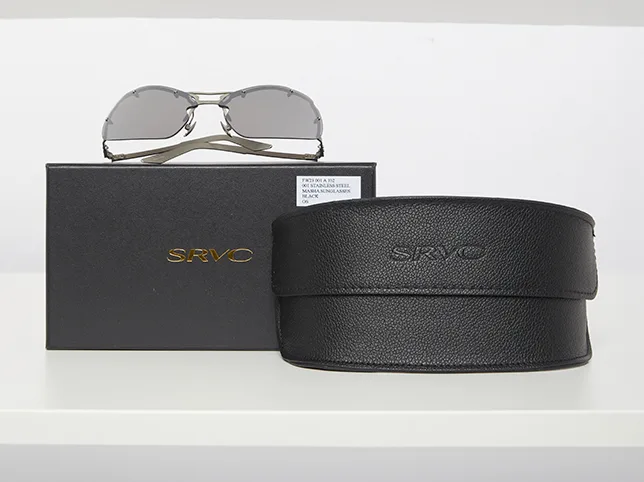
Background removed for a Shopify tile.
Remove the background and prepare this as a square product tile. Pure white at RGB 255, 255, 255. Centre the product and size it to fill 85 percent of the tile height, with equal margin left and right. No shadow, no reflection, no gradient. Keep the product’s proportions exactly: do not stretch it to fill the square.
What to watch for: non-uniform scaling. A square frame invites a model to stretch a rectangular product into it. Check a straight edge against the frame.
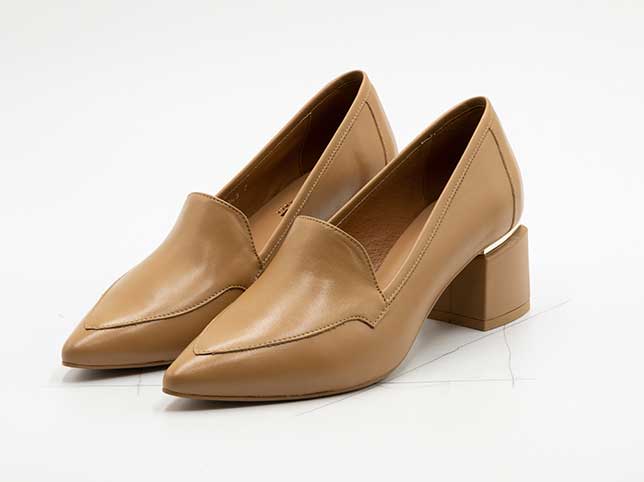
8. Footwear, with a sole and a shadow line
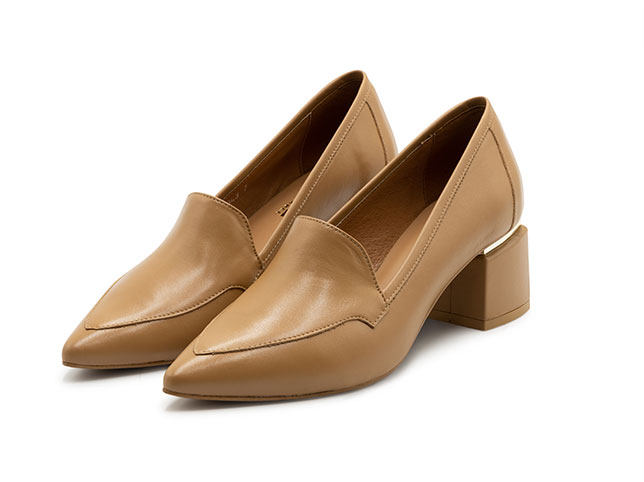
Before
After
Footwear cut-out.
Cut this shoe out onto pure white. Follow the sole edge precisely, including the tread and any welt stitching, and keep the gap under the arch open to the background. Preserve the material texture and the lace detail. Remove the original contact shadow completely. No halo along the sole, which is where the product sat closest to the surface.
What to watch for: the sole line. The point where the product met the surface is the hardest part of any cut-out and the part that most often keeps a shadow of the old background.
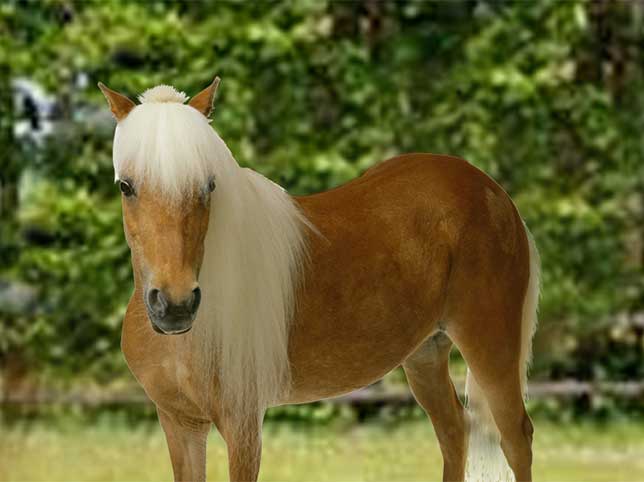
9. Fur and animal photography
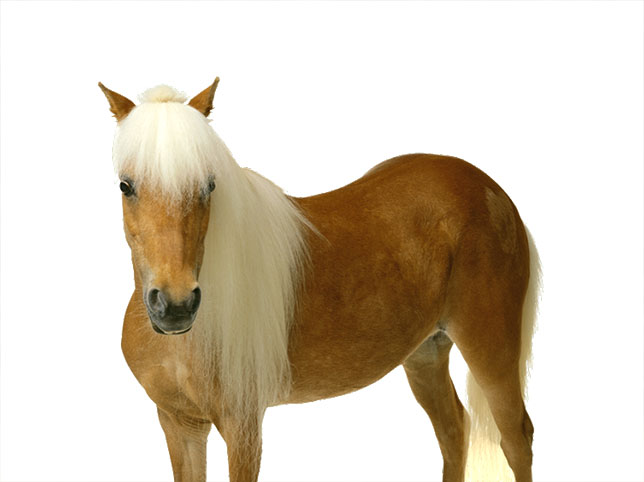
Before
After
Animal photography cut-out. Fur is the hardest edge there is.
Remove the background from this photograph while preserving the fur edge. Keep individual hairs and the soft irregular outline of the coat rather than cutting a smooth line around the animal. Do not paint in additional fur. Whiskers and any fine strands must survive. No halo of the original background colour along the edge. Replace the background with a clean even colour.
What to watch for: a shaved outline. When a model cannot resolve fur it cuts a clean silhouette, and the result reads as a cardboard cut-out of an animal.
10. Large products with hard edges and glass


Before
After
Vehicle background removal.
Remove the background from this vehicle photograph. Follow the true outline including mirrors, aerials and any narrow trim. Where windows are transparent, the new background must show through them rather than the old scene. Keep every reflection on the paintwork that belongs to the product, and remove any that clearly shows the original location. Clean even background.
What to watch for: windows that keep the old world in them. Glass is where a large cut-out gives itself away, because the reflection and the see-through both have to change.
11. Products shot on a surface that has to go
Before
After
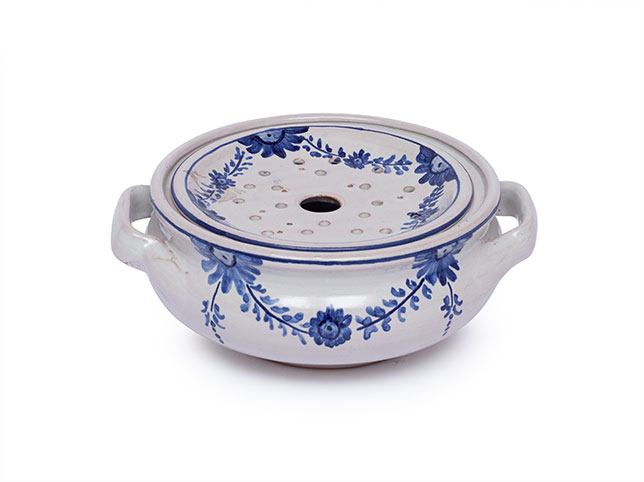
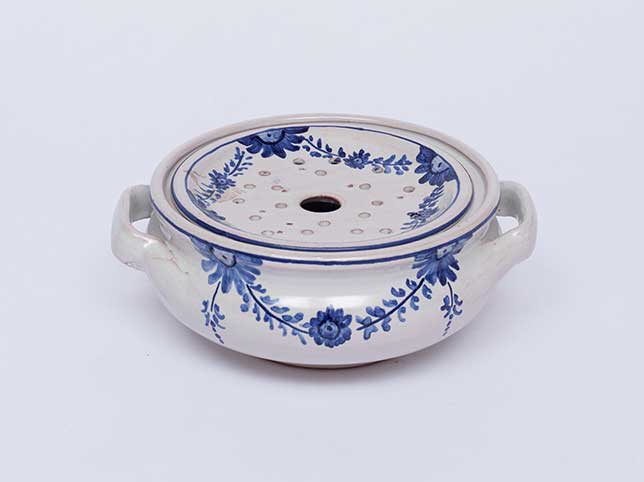
Ceramic cookware cut-out.
Cut this product out onto pure white and remove the surface it was standing on completely, including any shadow or reflection it cast on that surface. Follow the base edge precisely where the product met the surface. Keep the product’s own colour, glaze and texture unchanged. No halo, no residual shadow, no soft grey along the bottom edge.
What to watch for: the base line. The join between product and surface holds tone from both, so it is where leftover grey survives, and it is at the bottom of the frame where nobody looks.
Where a prompt is not enough
Simple shapes on clean backgrounds cut well. What comes back to us, after a seller has already tried a tool, is nearly always one of four things:
Fine and irregular edges: hair, fur, feathers, fringing, loose knit, mesh, bristles. A model resolves what it cannot select by smoothing it away.
Transparency and reflection: glass, acrylic, sequins, polished chrome. Getting the see-through parts to change with the background is a compositing job rather than a selection one.
Products that share a tone with their background: a white product shot on white, a black one on black. There is nothing at the edge for a model to find.
Volume with a consistency requirement: a hundred cut-outs where every one has to match the last.
Our background removal service handles the first group by hand; for products where the path matters more than the mask, the clipping path work is the better fit, and hair, mesh and open weave go through image masking.
Check your own cut-outs for this
Two minutes, on images you already have. If any of these fails, the problem is in your listings right now:
- Put the image on a mid-grey background. Every halo, fringe and leftover rim becomes visible instantly. On white it hides.
- Look inside, not just around. Gaps under handles, between straps, through weave, between limbs: are they the same white as the outside?
- Zoom to 100% on the softest edge. Fur, hair, fringe or fabric. Is the detail still there, or has it been smoothed into a clean line?
- Check the contact point. Where the product sat on the surface is where old shadow survives.
The grey-background trick alone will tell you within a minute whether the tool you are using is good enough for your catalogue.
Frequently asked questions
Are these before and after images AI generated?
No. Every one is real client work cut out by hand at Pixel Retouching, shown so you can see the standard the prompts are aiming at.
Why does my cut-out have a faint outline?
Because the selection is running slightly inside or outside the true edge and carrying pixels of the old background. It is nearly invisible on white and obvious on grey, which is why the check above is worth doing.
Can AI remove a background from hair or fur?
It can produce something that looks like hair. Whether it preserves your subject’s actual hairline is a different question, and at listing zoom the difference shows.
Should I keep the original shadow?
Keep it if it is clean and consistent across your set, remove it if it is not. What you should not do is leave the decision to the model, which will often invent a shadow that contradicts the lighting.
What background should I use for marketplace listings?
Most marketplaces want pure white at RGB 255, 255, 255 for the main image and allow more freedom on secondary images. Check the current rules for the platform before a bulk upload.
See it on your own products
The quickest way to find out whether prompting is enough for your catalogue is to send us the three images you found hardest. Send three images through the free trial and a retoucher will edit them by hand and send them back within 24 hours. No card, and you keep the files either way, including any you have already run through a prompt, which is the quickest way to see the two side by side.